Office - Repair office installations:
About:
This guide explains how to repair a Microsoft Office installation on Windows using the built-in repair tool. It applies to Microsoft 365 and most modern Office versions installed on Windows.
Access the repair tool:
1, Right-click the Start button in the lower-left corner of the screen.
2, Select Apps and Features.
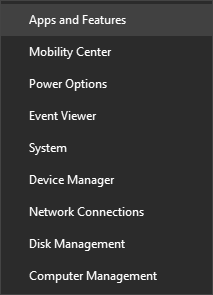
3, Find your Microsoft Office product in the list.
4, Select it, then choose Modify.
- This repairs the full Office suite, not individual apps.
- If you have a standalone app (for example, only Word or only Excel), search for that app by name instead.
Choose repair type:
If your Office installation is Click-to-Run:
Depending if your copy of Office is Click-to-run or MSI-based install, you'll see the following options to proceed with the repair.
1, When prompted with How would you like to repair your Office programs, choose one of the following:
- Quick Repair: Faster, fixes common issues by replacing corrupted files.
- Online Repair: More thorough, reinstalls Office components and requires an internet connection.
2, Select Repair and follow the on-screen instructions.
If your Office installation is MSI-based:
1, In the Change your installation window, select Repair.
2, Select Continue.
3, Follow the on-screen instructions to complete the repair.
After the repair:
1, Restart your computer once the repair process has finished.
2, If problems persist after Quick Repair, repeat the process and choose Online Repair.
And you are done 😄